

Every mic, processed.
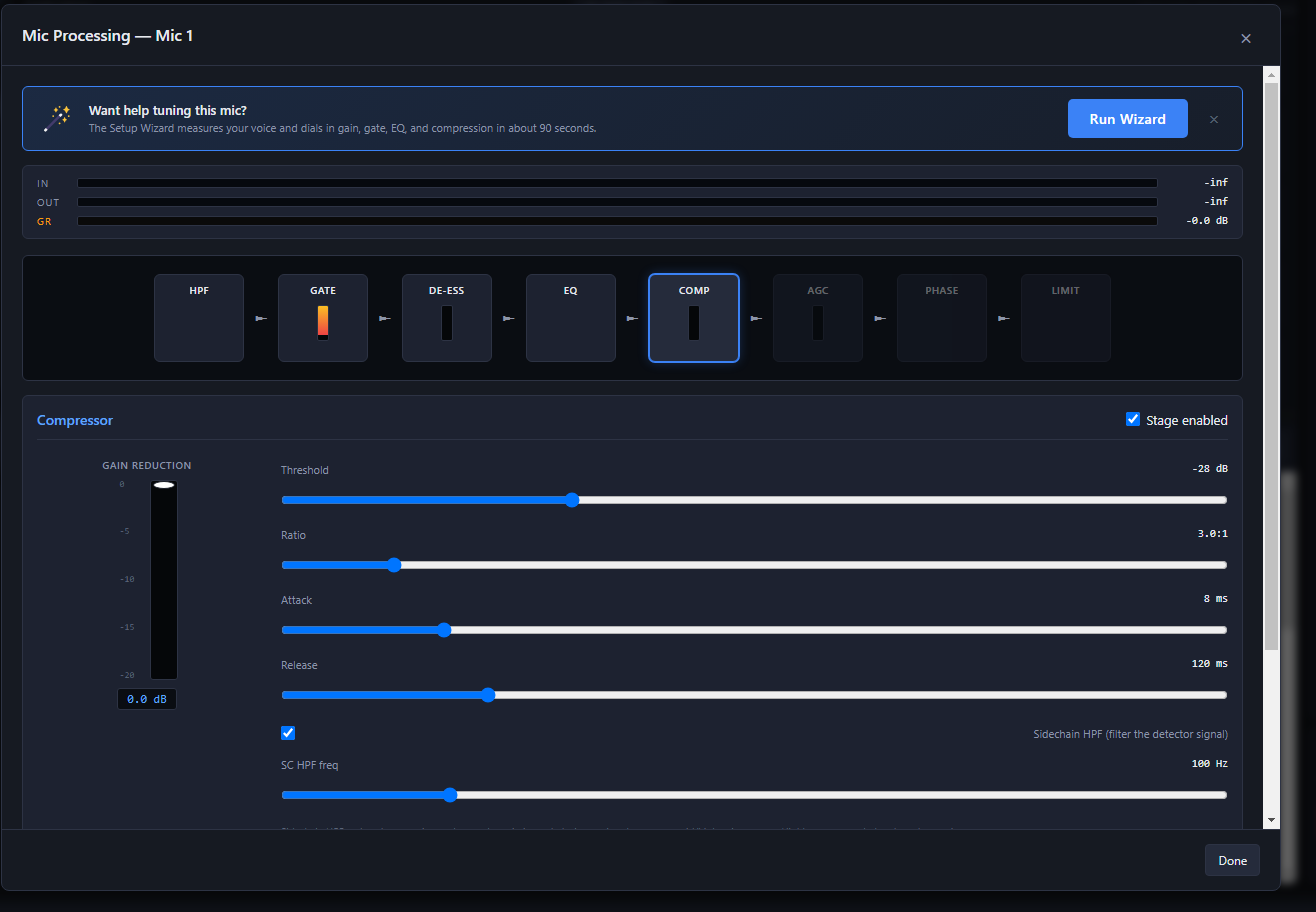
Every mic gets its own broadcast processing chain: eight stages, from the high-pass filter to the limiter, with input, output and gain-reduction meters across the top. It is the kind of chain a station puts on its studio mics, on every mic at the game.
- Click any stage in the chain to open its controls.
- Start from a mic style (Sports, Talk Show, News, Podcast, AM Radio or FM DJ), or save your own presets by name and load them on any mic.
- A sidechain high-pass on the compressor, so low end doesn't drive it.
- Run Wizard sits at the top of every mic and sets most of this for you. The wizard is explained below.
The chain, in the order your voice goes through it. Click a stage to see what it does.
Stage 1 of 8
High-pass filter
Cuts the rumble underneath the voice before anything else hears it: mic-stand thumps, handling noise and air-conditioning drone.
Set by the wizard. It places the cut just under your voice.
Stage 2 of 8
Noise gate
Quiets the room and the crowd between sentences, then opens the moment you talk. It works gently, holding open through short pauses, so it never chops the ends of your words.
Set by the wizard from your voice and your room. You pick Soft, Medium or Hard.
Stage 3 of 8
De-esser
Tames harsh S and T sounds by turning down only the sibilance, and leaves the body of the voice alone.
Set by the wizard from how much sibilance it measures. You pick Off, Light, Medium or Strong.
Stage 4 of 8
EQ
Shapes the tone in four bands: warmth at the bottom, presence in the middle where a voice cuts through, and air on top.
Set by the wizard after it measures what your microphone is doing to your voice.
Stage 5 of 8
Compressor
Evens out loud and soft so the voice stays steady and up front. A high-pass on its detector keeps low thumps and popped Ps from making it pump.
Set by the wizard from your measured level. You pick Soft, Medium or Hard.
Stage 6 of 8
Automatic gain control
A slow leveler for announcers who lean in and out from the mic, so the level stays steady as they move.
Yours to switch on when you need it. The wizard leaves it alone.
Stage 7 of 8
Phase rotator
A broadcast trick that evens out the lopsided shape of the human voice, so the limiter has more room and the voice can run louder without clipping.
Yours to switch on when you need it. The wizard leaves it alone.
Stage 8 of 8
Limiter
The safety ceiling at the end of the chain. Nothing gets past it, so even the biggest call never clips.
Set by the wizard to a broadcast-safe ceiling.
 Enlarge
Click the picture to see it bigger.
SportsCaster Pro
$599
The whole remote kit on one PC, in two-channel and four-channel versions.
Requires a Behringer UMC or Focusrite Scarlett audio interface.See which models

SportsCaster Pro works with the interface through ASIO®. ASIO is a trademark of Steinberg Media Technologies GmbH, registered in Europe and other countries.
The Setup Wizard
Make every mic sound like a pro broadcaster.
What it is
A guided setup built into Mic Processing. Press Run Wizard on any mic, put your headphones on, and it walks you through about 90 seconds of talking, one big call and a moment of silence.
What it does
It sets your gain first, then measures your voice, your room and the microphone itself, and sets the high-pass, gate, de-esser, EQ, compressor and limiter for that voice on that mic.
Why it matters
Every microphone sounds different, and so does every voice. The wizard matches each one to a professional broadcast target, so whoever is on the headset sounds like a seasoned pro, and your whole crew sounds like one station.
How it does itTen steps. Click any step to see the real screen and what happens.
- 1Set the gain
- 2Check for clipping
- 3Hear the room
- 4Set the gate
- 5Your voice and your mic
- 6Measure the mic
- 7Set the EQ
- 8Set the compression
- 9Tame the S sounds
- 10Done
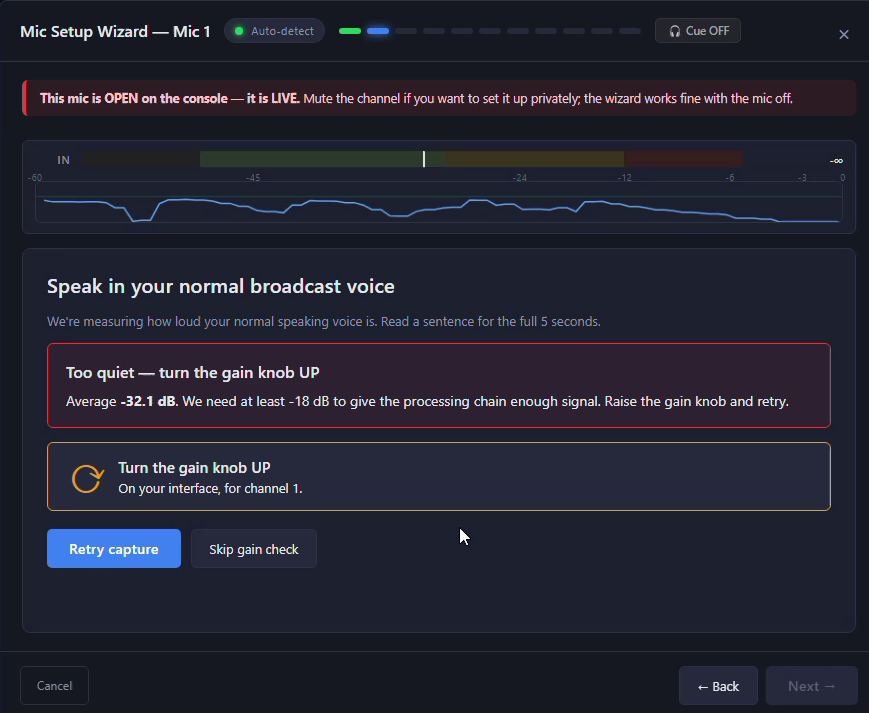
Step 1 of 10
Set the gain
You
Read a sentence in your normal on-air voice for five seconds.
The wizard
Measures your level and tells you which way to turn the gain knob on your interface, up or down, and for which channel. Retry until you are in the broadcast zone.
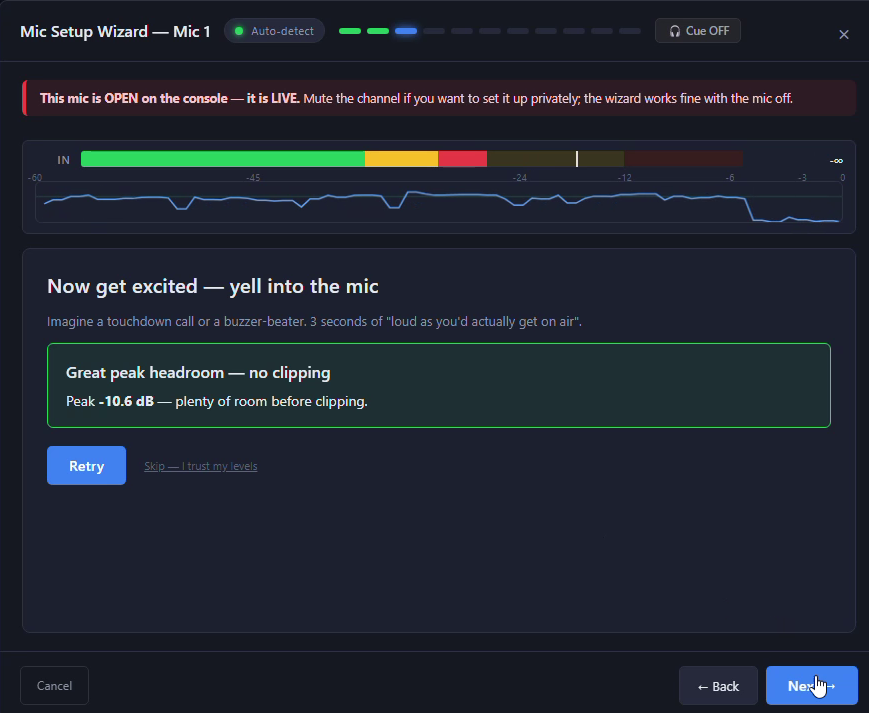
Step 2 of 10
Check for clipping
You
Give it your best touchdown call or buzzer-beater for three seconds.
The wizard
Checks your loudest peaks. If you are clipping, it tells you to turn the gain down. If there is room to spare, you are cleared.
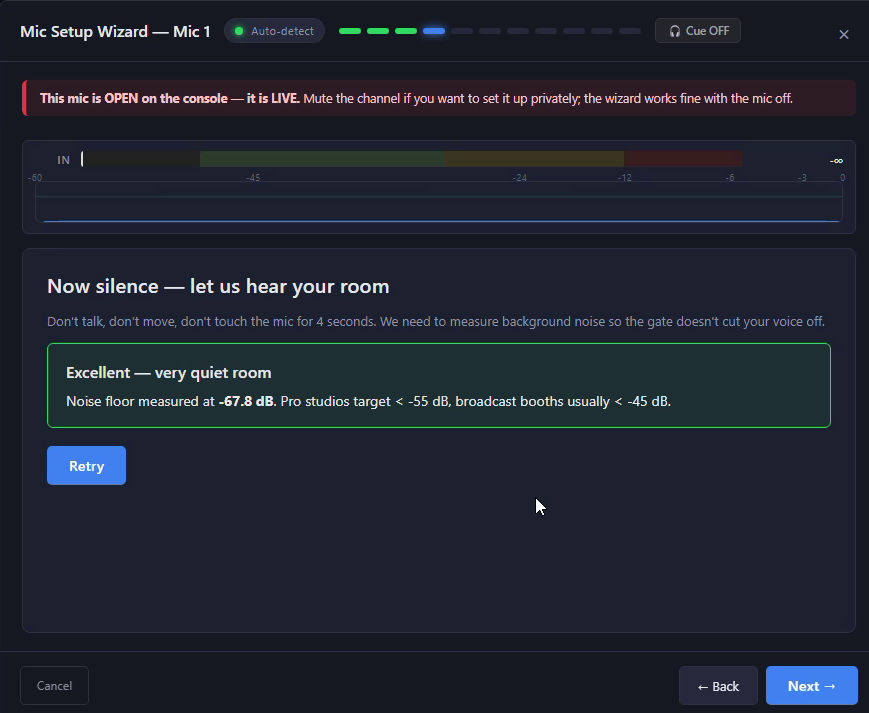
Step 3 of 10
Hear the room
You
Stay quiet for four seconds.
The wizard
Measures the background noise in the booth, so the gate knows the difference between the room and you.
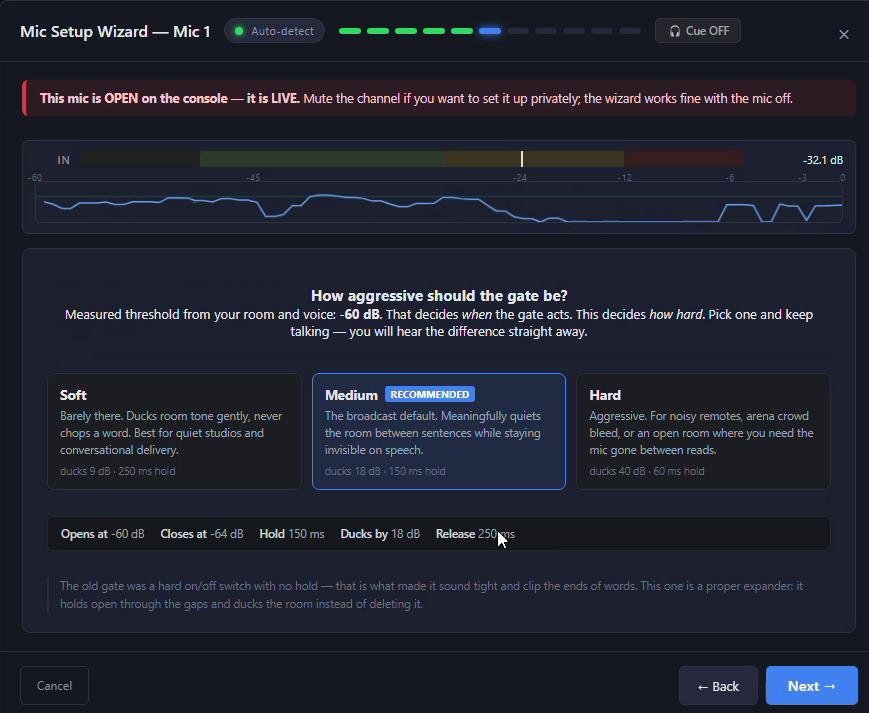
Step 4 of 10
Set the gate
You
Talk again, then pick Soft, Medium or Hard while you listen.
The wizard
Sets the gate between your voice and the room, so the mic opens the moment you talk and quiets the room between sentences.
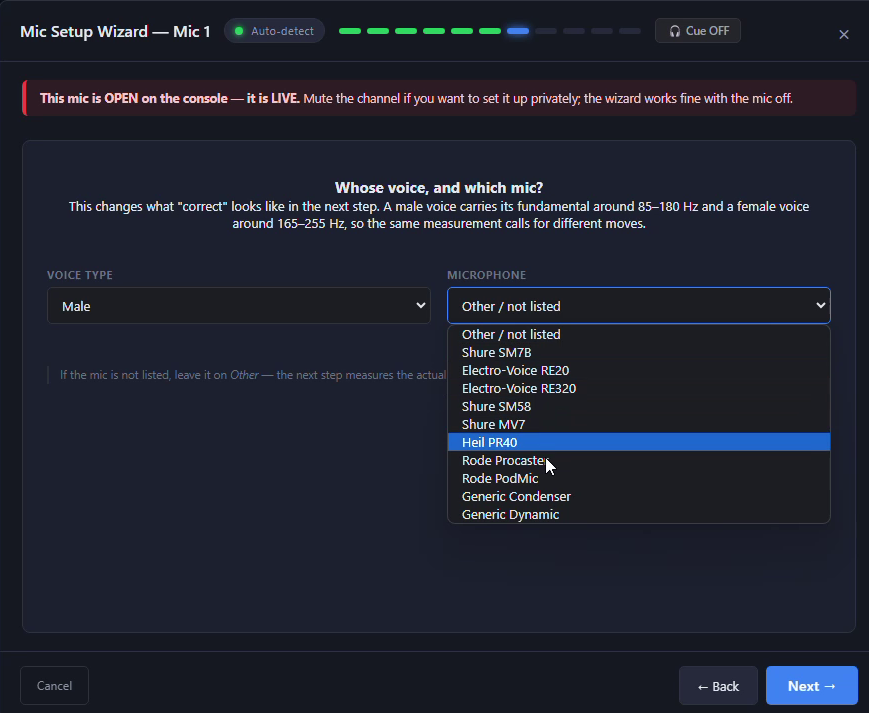
Step 5 of 10
Your voice and your mic
You
Choose male, female or neutral, and your mic: Shure SM7B, Electro-Voice RE20, Heil PR40, Rode Procaster and others, or Other.
The wizard
Knows where that voice should sit on that microphone, so it aims at the right target in the next step.
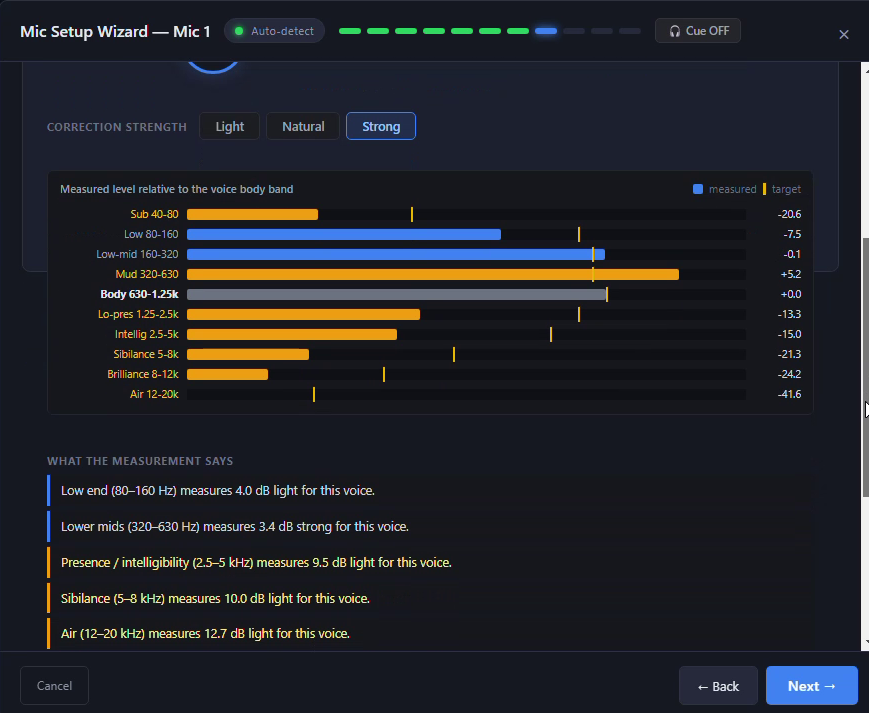
Step 6 of 10
Measure the mic
You
Read for eight seconds.
The wizard
Measures every band of your voice through that microphone against the broadcast target, and tells you in plain words what is light and what is heavy.
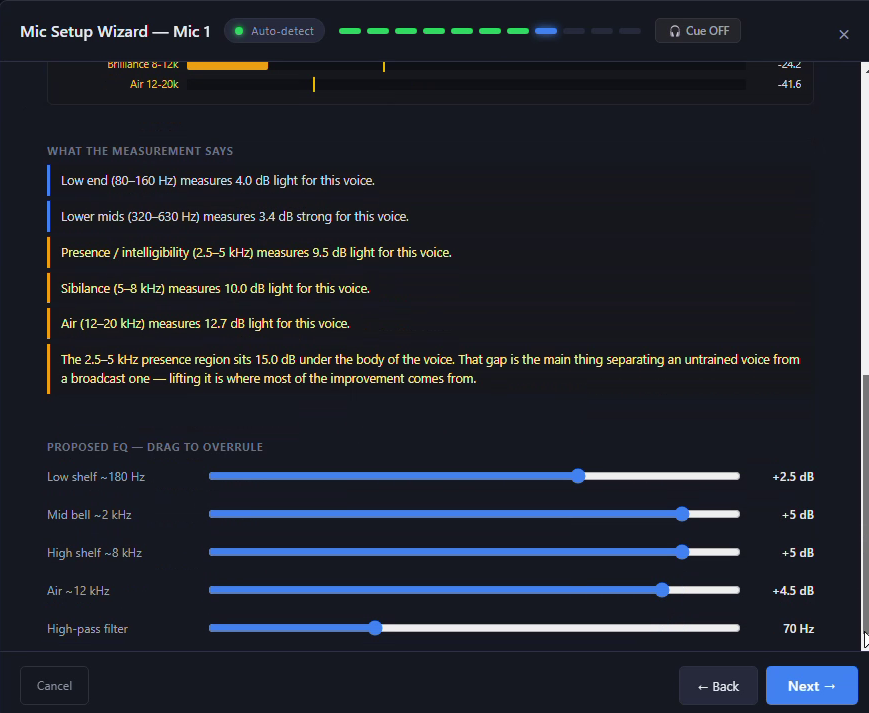
Step 7 of 10
Set the EQ
You
Choose Light, Natural or Strong correction. Drag any slider to overrule it.
The wizard
Proposes the EQ that closes the gap, usually lifting the presence that separates an everyday voice from a broadcast one.
Step 8 of 10
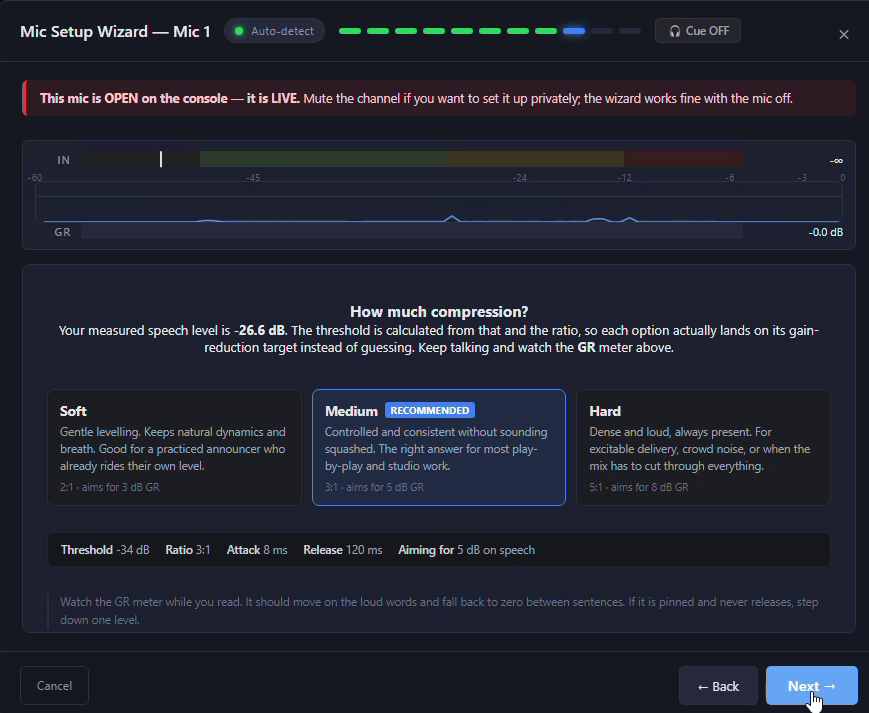
Set the compression
You
Pick Soft, Medium or Hard and keep reading.
The wizard
Works out the compressor from your measured level so each choice lands where it should, and shows the gain-reduction meter moving while you talk.
Step 9 of 10
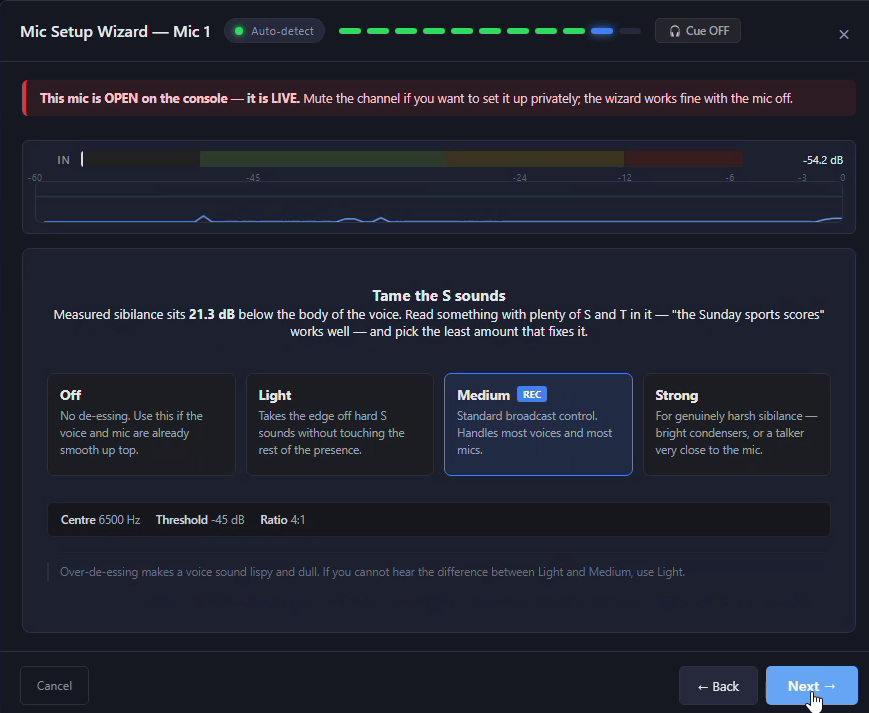
Tame the S sounds
You
Read something full of S and T sounds. "The Sunday sports scores" works well.
The wizard
Measures your sibilance and offers Off, Light, Medium or Strong de-essing. Pick the least that fixes it.
Step 10 of 10
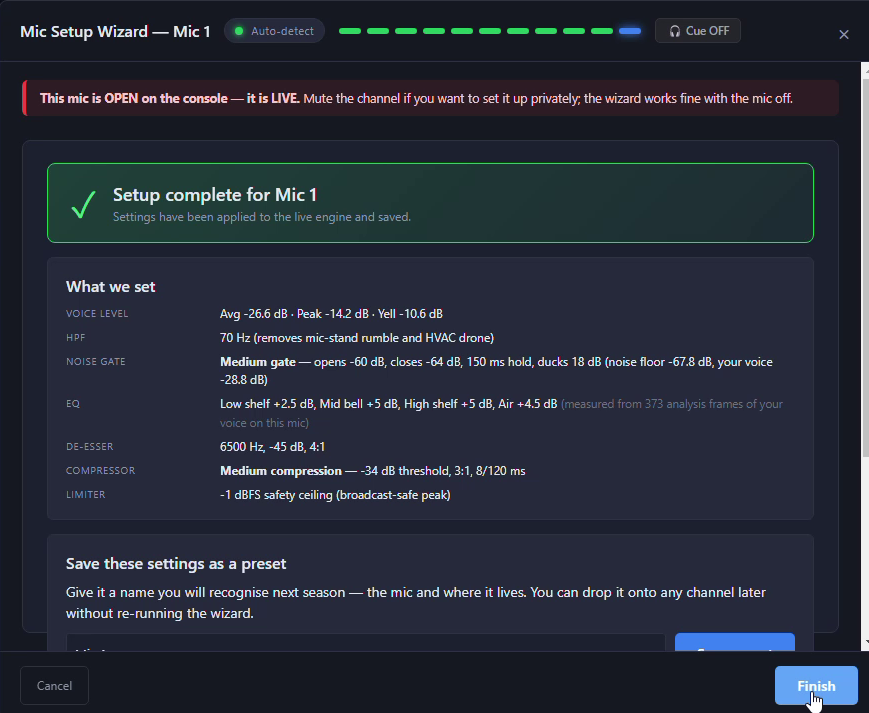
Done
You
Give it a name, like the mic and where it lives, and save it as a preset.
The wizard
Applies everything to the live mic, saves it, and shows you exactly what it set, from the high-pass to the limiter. Load the preset on any channel later without running the wizard again.